Day #10 - Docker Volumes Explained: Making Container Data Last Beyond the Container
From ephemeral containers to persistent data: Docker storage made easy.

Hi There! Welcome back!
I hope life has been treating you gently: whether you’re busy at work, buried in assignments, or just trying to find a quiet moment for yourself. For me, it’s been one of those weeks where the to-do list never seems to end, but honestly, having these little catch-ups through the blog makes it all worth it.
Now, before we jump into today’s topic, here’s a random fact I couldn’t resist sharing: Voyager 1: the space probe launched in 1977, recently crossed a milestone of being one light-day away from Earth. That means if you shined a flashlight from Earth toward Voyager 1 today, the beam would take a full 24 hours to reach it. Just imagine that: something humans built nearly 50 years ago is now so far that light itself needs a whole day to catch up!

Now, while we’re not exactly dealing with space probes in our day-to-day, we do face something similar in tech i.e. keeping things going even after time passes or systems change. And in the world of Docker, this challenge shows up in the form of data persistence. Containers are great at running apps, but the moment a container is deleted, its data disappears too. That’s where Docker volumes step in, they give our data a safe place to live, even if the container itself comes and goes.
Why Docker Storage Matters: The Case of the Ephemeral Container
We’ve already had a lot of fun with Docker, learning why it’s needed, running a few commands, even creating our first Dockerfile. Today, we’re going to dive into something just as important: Docker storage.
Now, this might sound a bit technical at first, but let’s keep it simple. We probably already know that containers are ephemeral. That’s a fancy word for “short-lived.” A container is created to do a specific job, and once the job is done, the container can disappear. Poof! Gone.

But here’s the question: what happens to the data inside that container?
Let’s make it concrete with an example. Suppose you have an NGINX container running.
Now, if you haven’t met NGINX before, think of it as the friendly helper at the entrance of a shop.

When a customer walks in, the helper greets them and points them where to go: maybe the coffee section, the bakery, or the billing counter. On the internet, NGINX does something similar. When we type a website address into our browser, NGINX makes sure our request goes to the right place, whether that’s showing a webpage, passing us to an app, or spreading the load across multiple servers.
Now, imagine our NGINX helper is running inside a container. Every time someone interacts with your website, NGINX keeps a log file i.e. recording things like which user logged in, their IP address, and what actions they performed. This log file is super important. It can help troubleshoot problems, track activity, and even pass audits during security checks.
Here’s the problem: if the NGINX container shuts down, all of that log data disappears. Why? Because containers are designed to be lightweight. They borrow CPU, memory, and storage from the host machine, but they don’t have a permanent filesystem of their own. Once the container stops or is removed, all its temporary data goes with it, including our precious log files.
And this is exactly why Docker storage is important. Without a way to save data outside of a container, anything important your container generates i.e. logs, uploads, or database files, could vanish the moment the container stops.
Bind Mounts: Linking Your Container to the Host
We already know containers don’t stick around forever, they come, do their job, and disappear. And when they disappear, the data inside usually goes with them. That’s fine for quick tests, but in the real world some files actually matter. Think of log files, user uploads, or configuration files. We don’t want those disappearing just because a container had a bad day.

So how do we make sure that data has a safe place to live outside the container, while still letting the container use it freely? That’s where bind mounts come in.
Let me put it this way: imagine our container is like a little scratchpad or desk notebook. On this notebook, we jot down important notes, maybe who visited today, maybe a list of things we’ve done, maybe some numbers we’re tracking. Now here’s the problem: if the notebook gets misplaced (or tossed out when the desk is replaced), all those notes vanish with it.
But what if instead of only writing in that scratchpad, every word you wrote automatically got copied into a bigger, sturdier notebook that you keep safely on a shelf in your home office? Even if you lost the little scratchpad, the “master notebook” is still there with everything preserved. And when you get a new scratchpad, you can just hook it back up so it continues copying into the same master notebook, no data lost.
That’s basically what a bind mount does.
Inside our container, we might have a folder like
/app.On our host machine, we also have a folder: maybe also
/app, or maybe a different name.With a bind mount, we connect the two so they act like the scratchpad and the master notebook. Everything you write inside the container’s
/appis instantly saved in the host folder.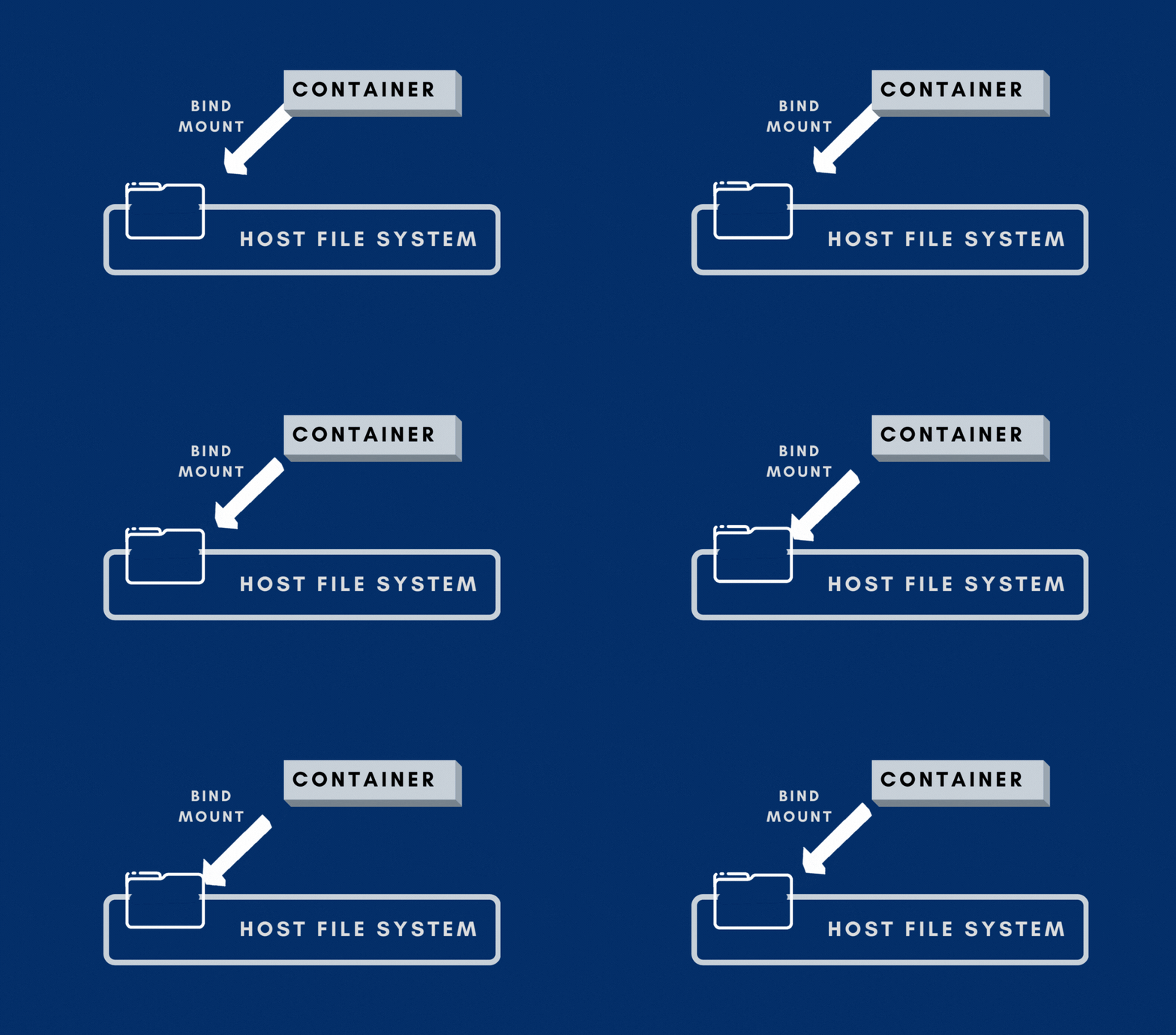
Why does this matter?
Our notes live on. Even if the container (scratchpad) is gone, the host (master notebook) keeps the data safe. Spin up a new container, link it to the same folder, and we pick up right where we left off.
We can flip through the notebook anytime. Since the files are on our host, we don’t have to dive inside the container to check what’s written. We can just open the file directly, edit it, back it up, or share it.
Multiple people can use it. Just like family members could all write in the same shared notebook, multiple containers can be linked to the same folder. They all see the same data without any extra setup.
The only catch? Since bind mounts directly use the host’s filesystem, we need to be mindful of paths and permissions. It’s like sharing that master notebook with others, everyone has to agree on how to use it, otherwise things can get messy.
Docker Volumes
Bind mounts are great for getting started i.e. they let your container write into your host machine’s folder so nothing important disappears. But here’s the thing: they rely very closely on the host’s exact setup. The path on our host, the structure of our folders, the permissions… it all has to line up just right. That works fine if we’re tinkering on our laptop, but in bigger projects it can quickly become messy.
That’s where volumes step in, and they’re like an upgrade from the “master notebook on your shelf” to a proper filing cabinet.

Think of it like this: instead of worrying about where exactly the notebook is placed in our house (which shelf, which drawer), we just get a big, reliable filing cabinet designed specifically for safekeeping. We can store our important papers there, and it doesn’t really matter where the cabinet is bolted down, we only need to know how to unlock the drawer.
In Docker terms:
A volume is managed entirely by Docker, not by us pointing to a specific host folder.
Docker decides where it physically lives on our machine, but we don’t have to care about the path.
What we care about is simply connecting our container to that volume, just like pulling out the drawer you need from the cabinet.
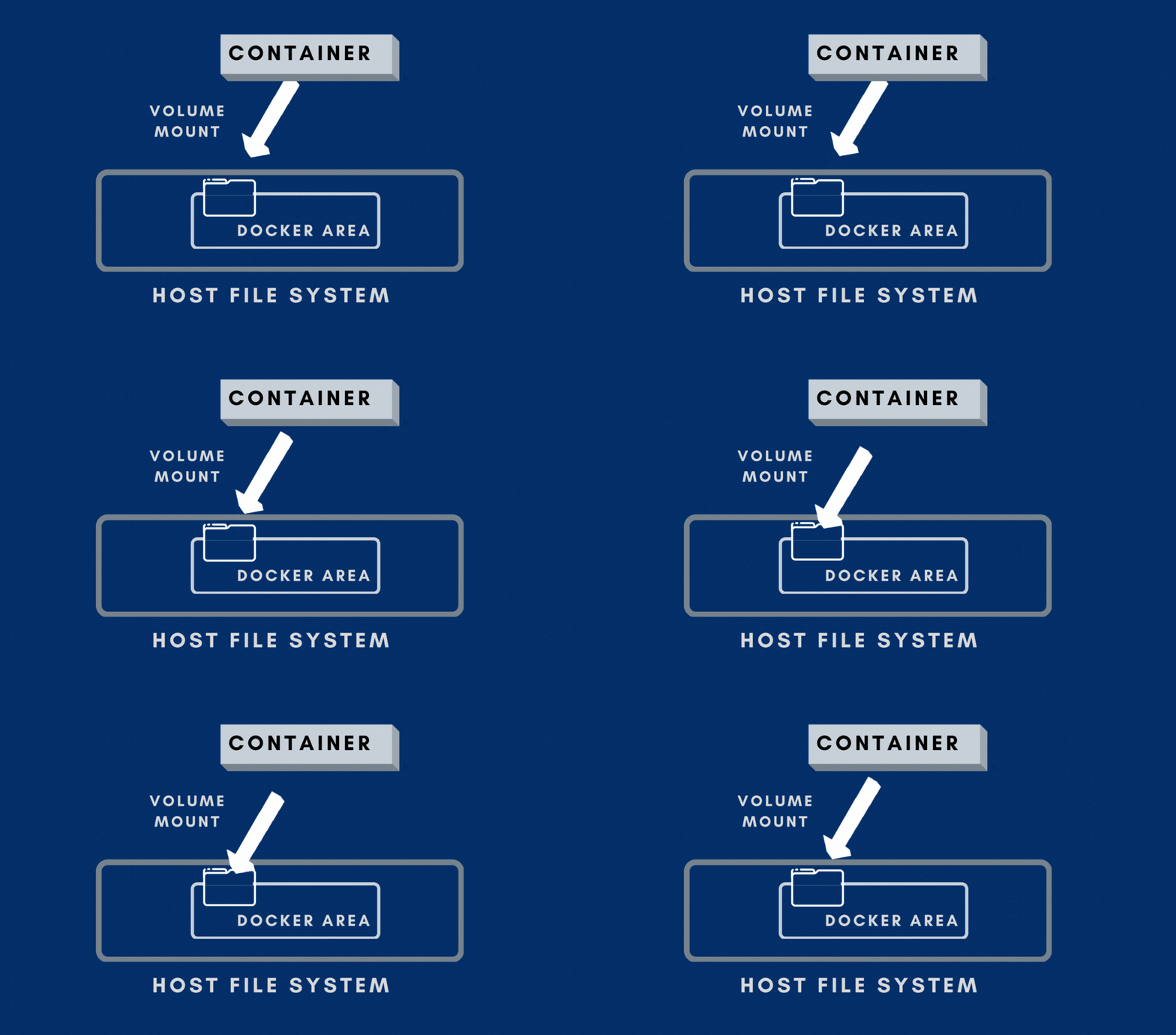
The beauty here is that volumes are purpose-built for containers. They’re safer, more portable, and easier to share between containers than bind mounts. If bind mounts are about us manually syncing with our host, volumes are about letting Docker handle the storage so we don’t get tangled in file paths and permission headaches.
And the best part? Even if we blow away every container we’ve created, the filing cabinet (the volume) is still sitting there, patiently waiting with all your files inside. We can spin up a brand-new container tomorrow, attach it to the same volume, and it’ll feel like we never left.
So while bind mounts give us direct access to your host’s folders, volumes give us a cleaner, more reliable way to make our container data stick around. They’re the tool we reach for once we move beyond quick experiments and into real-world apps where data actually matters.
Let’s circle back to our NGINX example.
Say we have an NGINX container that’s writing logs i.e. details like who visited, what IP they came from, and when. These logs are critical for security audits or debugging. If the container crashes and takes its logs with it, you’ve lost valuable information.
With a bind mount, we’d map the container’s log folder to a host folder, ensuring logs stay safe. With a Docker volume, we take it a step further: instead of binding to a specific host folder, we just say, “Docker, please give me a volume named nginx-logs.” Docker sets it up, our container uses it, and even if we tear down the container, the nginx-logs volume remains intact. Later, a brand-new container can attach the same volume and instantly see all the old logs.
The Lifecycle and Flexibility of Docker Volumes
One of the nicest things about Docker volumes is that they’re not just storage, they have a lifecycle of their own. We can think of them almost like little “USB drives” that Docker manages for you.

Just like with a USB drive, we can:
Create one when we need it.
Plug it into a container (or more than one).
Unplug it and plug it into another container.
Delete it when we don’t need it anymore.
And here’s the best part: through all of that, the data stays safe until we choose to remove the volume.
Let’s bring back our NGINX example for a second. Imagine we’ve got a container logging user activity into a volume called nginx-logs. The container might come and go, maybe you stop it, maybe we upgrade it, maybe it crashes, but the volume keeps the log data safe in the background. Later, when we spin up a new NGINX container and connect it to nginx-logs, it can immediately read all the old log entries as if nothing ever happened. That’s the beauty of the lifecycle.
Now let’s talk flexibility. Unlike bind mounts, which tie us down to one specific folder on one host machine, volumes can live in many places. Docker lets you:
Keep them on the same host. This is the simplest option, Docker sets up the volume somewhere on our machine and just manages it for you.
Store them on high-performance storage. Maybe our app needs really fast reads/writes. We could place the volume on a high-speed SSD or network-attached storage and give our container the power it needs without touching our host’s slower disks.
Back them up or move them. Since volumes are managed by Docker, we can easily copy them, back them up, or move them across environments.
Use external or cloud storage. Here’s where it gets really cool: we can create volumes on external storage systems like NFS, or even in the cloud on AWS (think EBS or S3). That means if our local host runs out of space, we’re not stuck, we can shift our volume elsewhere without losing a thing.
Creating and Using Volumes: -v vs --mount
Alright, now that we know why volumes are useful, let’s look at how we actually use them.
Docker gives us two main ways to attach a volume to a container:
The quick and simple
-voptionThe more detailed
--mountoption
Both do the same job in the end, they give your container a safe storage space, but the way we write them is a little different.

The Short Way: -v
Think of -v as the shorthand. We squeeze everything into one line, and Docker figures it out. For example:
docker run -d \
  --name mynginx \
  -v nginx-logs:/var/log/nginx \
  nginx
Here’s what’s happening:
nginx-logsis the name of the volume. If it doesn’t exist, Docker will create it for us./var/log/nginxis the folder inside the container where logs are written.By linking the two, any logs written in
/var/log/nginxget stored in thenginx-logsvolume.
That’s it! Next time we start a new container and attach it to nginx-logs, the old logs will still be there.
The Detailed Way: --mount
Now, sometimes shorthand can be confusing, especially if we’re explaining things to our teammates or revisiting the command months later. That’s where --mount comes in. It’s more verbose, but also more readable.
The same command with --mount looks like this:
docker run -d \
  --name mynginx \
  --mount source=nginx-logs,target=/var/log/nginx \
  nginx
See the difference?
source=nginx-logs→ this is the volume we’re using (or creating if it doesn’t exist).target=/var/log/nginx→ this is the container folder where the volume will show up.
It’s like spelling everything out clearly: “This is my storage source. This is where I want it to appear inside the container.”
Both -v and --mount are valid. If we’re just running quick tests, -v works fine. But if we’re sharing commands with teammates or setting things up for production, --mount is usually the safer, clearer choice.
Wrapping It Up: Bind Mounts vs Volumes
And that’s a wrap on Docker storage!
I hope this gives a clear picture of how to keep our container data safe: whether we’re starting with bind mounts or stepping up to volumes. Remember, containers are like little portable workspaces, but our data deserves a permanent home.
Containers are powerful, but the real magic happens when you make sure your data outlives them. Next time you spin up a container, think about whether its data matters. If it does, give it a proper home because just like us, even containers need a place where their memories can live on.

Keep experimenting, have fun, and don’t be afraid to get a little creative with your Docker volumes. After all, the more comfortable we get with them, the more confident we’ll feel managing real-world applications.
Happy Dockering!


![Day #47: [DAY-22] Two Tier Architecture Setup on AWS Using Terraform](/_next/image?url=https%3A%2F%2Fcdn.hashnode.com%2Fres%2Fhashnode%2Fimage%2Fupload%2Fv1766423595267%2F6582f7e7-0485-445b-9117-36f5abbe5d44.png&w=3840&q=75)