DAY #43: [DAY-18] AWS Terraform: Image Processing Serverless Project using AWS Lambda
Let’s learn how to build an event-driven image processing pipeline with Terraform
![DAY #43: [DAY-18] AWS Terraform: Image Processing Serverless Project using AWS Lambda](/_next/image?url=https%3A%2F%2Fcdn.hashnode.com%2Fres%2Fhashnode%2Fimage%2Fupload%2Fv1765716511983%2Fccc81f9f-0be2-4e82-96ce-c313e43e70c5.png&w=3840&q=75)
Introduction
Hello, and welcome back to the blog!
This is Day 18 of our 30 Days of AWS Terraform journey, and if you’ve been following along, we’ve already covered quite a bit together. Last day, we explored a mini-project on AWS Terraform Blue-Green Deployment using Elastic Beanstalk. Today, we’re building on that learning, but we’re taking a slightly different turn.
Instead of focusing on networking or long-running infrastructure, we’re going to explore something lighter, more event-driven. Our focus for today is AWS Lambda, the star of the serverless world.

This blog remains Terraform-focused, just like the rest of the series. But instead of provisioning servers that must run all the time, we’ll see how Terraform can help us create something that runs only when it’s needed.
To make this practical, we’ll walk through an end-to-end image processing project i.e. from uploading a file to S3, to automatically processing it using a Lambda function, all orchestrated through Terraform.
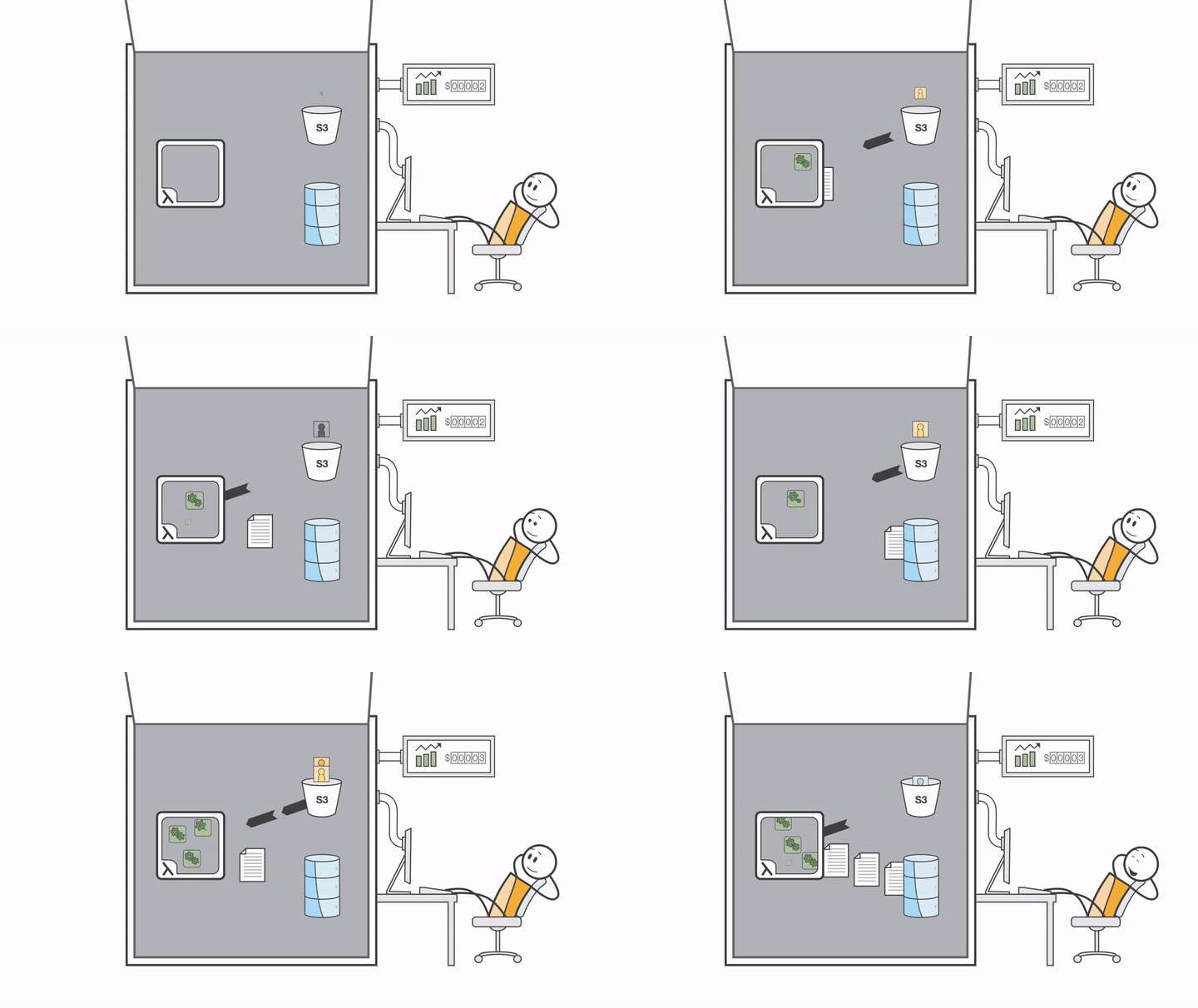
Before touching any code or Terraform files, there’s one important step: understanding what AWS Lambda really is, how serverless works, and why this approach fits so well with event-driven workflows. Once we have that mental picture, everything else in the project will start to make a lot more sense.
Fact #18: I’m not really good at cooking, but if you put me in front of a pan and some rice, I can make omurice pretty well.
What Exactly Is AWS Lambda? And What Do We Mean by “Serverless”?
So, what exactly is Lambda?
At its core, AWS Lambda is a serverless function.
Now, that word serverless can sound a bit confusing at first. It’s not the same as someone saying, “There are no servers at all,” which isn’t really true. There are servers involved, but the difference is we don’t manage them.
Let’s break this down.
Whenever we build a traditional application, the usual flow looks something like this:

That server has to be running all the time, especially if it’s hosting a live application. Even if no one is using the app at that moment, the server is still there, still running, still costing money.
This is the model most of us are familiar with.
Now, serverless changes this mindset.
With Lambda, we don’t provision servers at all. Instead of thinking about machines, we think about functions. We simply write our application code, package it, and upload it as a Lambda function.
AWS takes care of everything else.
The servers still exist, but AWS manages them for us. We don’t worry about operating systems, scaling, or uptime. Our responsibility ends with the code.
And here’s the key difference:
a Lambda function does not run all the time.
A Lambda function runs only when something triggers it.
This trigger is called an event.
An event could be:
A file being uploaded to an S3 bucket
A scheduled time (for example, every Monday at 7 AM)
A real-time system event
When the event happens:

That’s it.
There’s no server sitting idle in the background. The function exists until it’s needed, does its job, and then disappears again.
This makes Lambda especially useful for tasks that:
Run for a short time
React to events
Don’t need to be running continuously
Typically, Lambda functions are used for executions that last a few seconds to a few minutes. AWS recommends not using Lambda if your code needs to run longer than 15 minutes, and that’s an important boundary to keep in mind.
Now that we have a clearer picture of what Lambda is and how serverless works, we’re ready to look at how this idea fits perfectly with the project we’re building today i.e. an image processing pipeline driven by events.
Understanding the Project Flow
Now that we have a clear understanding of what AWS Lambda is and how serverless works, it’s the perfect time to look at what we’re actually building in this project.
Before we touch Terraform files or Python code, let’s first form a simple mental picture. If the architecture makes sense in our head, the implementation will feel much easier later on.
At a high level, this project is an image processing pipeline. And the beauty of it is that once it’s set up, everything happens automatically.
Here’s the idea.
We’ll have two S3 buckets:
One bucket where we upload the original image
Another bucket where the processed images will be stored
The first bucket is our source bucket. Whenever we upload an image to this bucket, that upload creates an S3 event.
And remember what we discussed earlier, events are exactly what serverless functions like Lambda are waiting for.
So as soon as an image is uploaded, that S3 event will trigger our Lambda function.
This Lambda function is where all the image processing logic lives. It will take the original image and automatically generate:
A JPEG image with 85% quality
Another JPEG image with 60% quality
A WebP version
A PNG version
And a thumbnail image resized to 200 by 200
All of this happens without us clicking any extra buttons or running any manual commands.
We simply upload a file using the AWS Console, AWS CLI, or even an API call and the rest of the workflow takes care of itself.
Once the processing is done, the Lambda function uploads all five generated images into the destination bucket. That’s where the final output lives.
Now, for this to work smoothly, permissions play a very important role.
The S3 bucket must be allowed to trigger the Lambda function.
The Lambda function must be allowed to:
Read files from the source bucket
Write processed files to the destination bucket
Write logs so we can see what’s happening behind the scenes
These permissions are handled through IAM roles and policies, and we’ll be creating them using Terraform by giving the function exactly what it needs and nothing more.
This follows a principle we’ve touched on before: least privilege access. We don’t give broad permissions like full S3 access. We only allow what is strictly required.
There’s one more important piece in this setup.
For image manipulation, we’ll be using Pillow, which is a Python library designed for image processing. Since Lambda doesn’t include Pillow by default, we’ll package it as a Lambda layer and attach it to our function.
This keeps our Lambda function clean and makes dependencies easier to manage.
So to summarize the flow in simple terms:
We upload an image to the source S3 bucket
An S3 event is created
The event triggers the Lambda function
The Lambda function processes the image using Pillow
Processed images are saved to the destination S3 bucket
Logs are written to CloudWatch for visibility
All of this infrastructure i.e. buckets, permissions, Lambda, layers, and triggers will be created using Terraform.
Now that we understand the full picture, we’re ready to dive into the repository and start seeing how this architecture translates into Terraform code.
Getting Started: Cloning the Repository and Setting the Stage
Now that we understand what we’re building and how the pieces fit together, it’s time to get our hands a little closer to the actual project.
For this project, we’ll continue using the same GitHub repository that we’ve been working with throughout this series.
The first step is to clone the repository and move into the Day 18 directory.
The repository lives here
Once we clone it, navigate into the day-18 folder and then into the terraform directory. This is where all the Terraform files for today’s project live.
Before we create any real AWS resources, there’s one small but important thing we need to handle.
Making Resource Names Unique
Some AWS resources, like S3 buckets, must have globally unique names. That means even if the bucket name makes sense to us, AWS might reject it if someone else in the world is already using it.
To solve this, we use a small helper resource in Terraform i.e. a random suffix.
In our main.tf, the first thing we create looks like this:

What this does is simple. Terraform generates a short random value, and we attach that value to our resource names. This way, we don’t have to manually keep changing bucket names every time we deploy.
Next, we define some locals. Locals allow us to build names once and reuse them everywhere, which keeps the configuration clean and readable.

Here’s what’s happening:
We build a common bucket prefix using the project name and environment
We create two bucket names i.e. one for uploads and one for processed images
We append the random suffix so the names stay unique
We also define a clear name for our Lambda function
This approach might feel repetitive if you’ve been following the series, and that’s a good thing. It means the concepts are starting to feel familiar.
With naming out of the way, we’re now ready to create the first real AWS resources for this project i.e. S3 buckets.
Creating the Source S3 Bucket
Every story has a starting point, and in our case, it’s the place where the original image first arrives.
This project begins with an S3 bucket that acts as the source bucket. Any image we upload here will eventually kick off the entire image processing workflow.
We start by creating the bucket itself.

There’s nothing complicated happening here. We’re simply creating an S3 bucket and giving it the name we already prepared using locals. This bucket will hold the original image exactly as it’s uploaded.
But creating a bucket is only the first step. There are a few important decisions we need to make to ensure this bucket is safe, reliable, and production-friendly, even though this is a learning project.
Enabling Versioning
The next thing we do is enable bucket versioning.

Versioning helps us keep track of changes. If the same file name is uploaded again, S3 doesn’t overwrite the old object, it stores a new version instead.
This is especially useful when files are important or when multiple updates might happen. Even if we don’t strictly need it for this demo, it’s a good habit to build and reinforces real-world practices.
Adding Server-Side Encryption
Next, we enable server-side encryption.

This ensures that any image uploaded to the bucket is encrypted at rest using AES-256. We don’t need to manage encryption keys manually, AWS takes care of that for us.
Again, this is about forming good habits early. Even simple projects deserve sensible security defaults.
Blocking Public Access
Finally, we make sure the bucket is private.

For this project, there’s no need for the upload bucket to be publicly accessible. Images are uploaded intentionally, and access is controlled.
By blocking public ACLs and policies, we make sure the bucket isn’t accidentally exposed. In real production systems, public access is usually handled through controlled layers in front of S3, not directly on the bucket itself.
Now, with the source bucket in place, we now need somewhere to store the processed images.
Creating the Destination S3 Bucket
This second S3 bucket is our destination bucket. Every image generated by the Lambda function i.e. all five variants, will be stored here.
The setup for this bucket looks very similar to the source bucket, and that’s intentional. Consistency makes infrastructure easier to understand, maintain, and secure.
We start by creating the bucket itself
Just like before, we’re using a name generated from locals, which includes the project name, environment, and a random suffix to ensure uniqueness.
Enabling Versioning Again
Next, we enable versioning for the processed bucket as well.
Processed images may change over time, maybe we adjust compression levels, add new formats, or improve the logic later. Versioning ensures we don’t lose older outputs if something changes.
Encrypting the Processed Data
We then apply server-side encryption to the destination bucket.
This ensures that all generated images are encrypted at rest, just like the originals. Consistent security across buckets is always a good practice.
Keeping the Bucket Private
Finally, we block public access for the processed bucket as well.
There’s no reason for processed images to be publicly accessible in this setup. Everything is handled internally by AWS services, and access is controlled through IAM permissions.
At this stage, we now have:
A source bucket for uploads
A destination bucket for processed outputs
Both buckets encrypted, versioned, and private
But these buckets don’t yet know how to talk to our Lambda function. And the Lambda function itself doesn’t exist yet either.
Before we can create the function, we need to solve an important question:
Who is allowed to do what?
That’s where IAM roles and policies come into play.
IAM Roles and Policies: Giving Lambda Just Enough Permission
So far, we’ve created two S3 buckets. They exist, they’re secure, and they’re ready. But right now, they’re just storage.
For our image processing workflow to actually work, we need a way for AWS Lambda to interact with these buckets, and to do that safely.
This is where IAM roles and policies come in.
Instead of hard-coding permissions or credentials, AWS uses roles to define what a service is allowed to do. In our case, we want the Lambda function to:
Write logs so we can see what’s happening
Read images from the source bucket
Write processed images to the destination bucket
Nothing more, nothing less.
Creating the IAM Role for Lambda
We start by creating an IAM role that Lambda can assume.

This role doesn’t give any permissions yet. It simply says:
“This role can be assumed by AWS Lambda.”
We define this using a policy document. While the JSON might look a bit intimidating at first, it’s really just a structured way of expressing trust. AWS even provides a policy generator to help create these documents, which makes life easier when you’re starting out.
Once this role exists, we can start attaching actual permissions to it.
Defining the Permissions with an IAM Policy
Next, we create a policy that tells AWS exactly what this Lambda function is allowed to do.

The policy may look intimidating, but here’s what it does:
The first statement allows the Lambda function to create log groups, log streams, and write logs. Without this, we’d have no visibility into what the function is doing, especially if something goes wrong.
The second statement allows Lambda to read objects from the source bucket. This is how it gets access to the uploaded image.
The third statement allows Lambda to write objects to the destination bucket. This is where all the processed images will be stored.
Notice something important here?
We are not giving full S3 access. We’re not using broad permissions like “S3FullAccess.” Instead, we’re granting access only to:
Specific actions
Specific buckets
Specific object paths
This is a perfect example of the principle of least privilege. We give the Lambda function exactly what it needs to work and nothing more.
With this IAM role and policy in place, our Lambda function will be able to:
Read images
Process them
Store the results
Write logs for us to inspect
Now that permissions are sorted, we’re ready to create something truly interesting, the Lambda function itself.
Lambda Layers: Bringing Image Processing Capabilities to Lambda
Now that our permissions are in place, we’re almost ready to create the Lambda function itself. But before we do that, there’s one important challenge we need to solve.
Our Lambda function is going to process images, and for that, we’ll be using Pillow, which is a Python library designed for image manipulation.
The problem is simple:
Pillow is not included by default in AWS Lambda.
So how do we use it?
This is where Lambda layers come into the picture.
A Lambda layer is a way to package external libraries and dependencies separately from our function code. Instead of bundling everything inside the function zip, we place shared or heavy dependencies into a layer and then attach that layer to the Lambda function.
This keeps the function code clean and makes dependencies easier to manage.
Creating the Lambda Layer Resource
In Terraform, we define the layer like this:

Here’s what’s happening:
filenamepoints to a zip file that contains the Pillow librarylayer_namegives the layer a clear, readable namecompatible_runtimesensures this layer works with Python 3.12The description tells us exactly what this layer is for
But this raises another question.
How do we create the pillow_layer.zip file in the first place?
Because AWS Lambda runs on Linux, the dependencies inside the layer must also be built for a Linux environment. This is important, especially if you’re working on macOS or Windows.
To solve this, we use some help from our friend Docker.
Building the Pillow Layer Using Docker
Inside the scripts folder, there’s a helper script that takes care of building the layer correctly.
This script runs a Linux-based Python container, installs Pillow inside the exact folder structure Lambda expects, and then packages it into a zip file.
The important thing to understand here isn’t every line of the script, it’s the idea behind it.
We’re ensuring that:
Pillow is installed in a Linux environment
The directory structure matches what Lambda expects
The final output is a clean zip file we can reuse
Once this zip file is created, Terraform can reference it and upload it as a Lambda layer.
With the layer ready, we finally have everything needed to create the Lambda function itself:
Storage (S3 buckets)
Permissions (IAM role and policy)
Dependencies (Pillow via a Lambda layer)
In the next section, we’ll create the Lambda function, attach the layer, configure memory and timeout, and pass environment variables that the function will use at runtime.
Creating the Lambda Function
With our storage, permissions, and dependencies ready, we can finally create the Lambda function that will do the actual image processing work.
But before Terraform can create the function, it needs one important thing:
the function code packaged as a zip file.
Packaging the Lambda Function Code
Our Lambda function is written in Python and lives inside the repository. To package it correctly, we use a Terraform data source.

This data source takes the Python file, compresses it into a zip archive, and makes it ready for deployment.
Even though we’re working with a local file here, Terraform treats this as data it needs to reference during deployment which is exactly what data sources are designed for.
Defining the Lambda Function
Now we define the Lambda function itself.

Let’s walk through this.
filenamepoints to the zip file created earlierfunction_namegives the Lambda function a clear identityroleattaches the IAM role we created, allowing the function to access S3 and logshandlertells Lambda where execution begins in the Python fileruntimespecifies Python 3.12timeoutis set to 60 seconds, which is more than enough for image processingmemory_sizeis set to 1024 MB to give the function enough resources
We also attach the Pillow layer here. This is what enables image manipulation inside the function.
Finally, we pass in a couple of environment variables:
The name of the processed images bucket
The log level
This keeps our code flexible and avoids hard-coding values.
Creating the CloudWatch Log Group
To make sure logs are retained in a predictable way, we also create a CloudWatch log group.

This ensures that logs are stored for seven days and then automatically cleaned up.
At this point, the Lambda function exists, but it still doesn’t know when to run.
Remember, Lambda functions don’t run on their own. They need an event trigger.
In the next section, we’ll connect the source S3 bucket to the Lambda function so that every image upload automatically triggers the processing workflow.
Wiring the Event Trigger: Letting S3 Invoke Lambda Automatically
Our Lambda function now exists. It has the code, the permissions, and the image processing library attached. But right now, it’s still just waiting.
For Lambda to actually run, it needs an event.
In our project, that event is simple and very natural:
an image being uploaded to the source S3 bucket.
To make this work, we need to do two things:
Allow S3 to invoke the Lambda function
Tell the S3 bucket which events should trigger the function
Allowing S3 to Invoke the Lambda Function
First, we explicitly give S3 permission to invoke our Lambda function.

This resource acts like a handshake.
It tells AWS:
S3 is allowed to invoke this Lambda function
The permission applies only to our upload bucket
The action allowed is strictly
InvokeFunction
Without this permission, S3 events would never be able to trigger the function, even if everything else was configured correctly.
Creating the S3 Event Notification
Now that permission is in place, we configure the S3 bucket to send events to Lambda.

This tells the source bucket:
“Whenever an object is created, in any way, invoke this Lambda function.”
It doesn’t matter whether the file is uploaded through:
The AWS Console
The AWS CLI
An API call
As long as an object is created in the bucket, the event fires.
The depends_on is important here. It ensures Terraform creates the permission first, so S3 is allowed to invoke the function before the notification is set up.
At this point, the entire flow is connected:
Upload an image
S3 generates an event
Lambda is invoked
Image processing happens automatically
Now all that’s left is deployment.
In the next section, we’ll look at the deployment scripts, how the Lambda layer is built automatically, and how everything is deployed using a single command.
Deploying Everything: Bringing the Project to Life
At this point, all the pieces of our architecture are defined. We’ve described the buckets, the permissions, the Lambda function, the layer, and the event trigger. Now comes the satisfying part, actually deploying everything.
To make this process smooth and beginner-friendly, we’ll not run long list of commands manually. Instead, the repository includes a small script that takes care of everything in the right order.
The deploy.sh Script
Inside the scripts folder, we’ll find a file called deploy.sh. This script is designed to guide the entire deployment process from start to finish.
When we run this script, here’s what it does.
First, it performs a few basic checks. It makes sure:
AWS CLI is installed
Terraform is installed
If either of these is missing, the script stops and tells us exactly what’s wrong. This saves time and avoids confusion later.
Next, the script builds the Lambda layer.
This is an important step. Remember, the Pillow library needs to be compiled in a Linux environment to work correctly with AWS Lambda. Instead of doing this manually, the script calls another helper script that uses Docker to:
Spin up a Linux-based Python environment
Install Pillow in the correct directory structure
Package everything into a
pillow_layer.zipfile
Once that’s done, the script moves into the Terraform directory and runs the familiar commands:
terraform initterraform planterraform apply
All in the correct order.
Terraform then takes over and creates every AWS resource we discussed:
Both S3 buckets
IAM roles and policies
Lambda layer
Lambda function
CloudWatch log group
S3 event trigger
When the deployment finishes, the script prints out something very useful, the names of the buckets and the Lambda function that were just created.
This makes it easy to know exactly where to upload your image.
Testing the Workflow
Once deployment is complete, testing the project is beautifully simple.
We just upload an image to the upload bucket.
It can be any JPG or JPEG file. We can upload it using:
The AWS Console
The AWS CLI
Any method that creates an object in the bucket
The moment the file is uploaded, the event is triggered.
Behind the scenes:
Lambda starts
The image is processed
Five new images are generated
All processed files appear in the destination bucket
If we open CloudWatch, we can also see the logs generated by the Lambda function, helpful for understanding what happened and for troubleshooting if something goes wrong.
And just like that, we’ve built an event-driven, serverless image processing system using Terraform.
Conclusion
And with that, we’ve completed Day 18 of the 30 Days of Terraform Challenge.
Today’s demo walked us through the serverless side of AWS, which is such a crucial piece when we talk about building truly cloud-native solutions. Services like Lambda, S3 event triggers, and IAM roles show us how powerful the cloud can be when we design systems that react to events instead of relying on always-running servers. This mindset shift is important, and today was a solid step in that direction.
It’s completely okay if the codebase felt a bit overwhelming at first glance. That feeling is part of the journey. As developers, we’re not expected to understand everything instantly. What really matters is how we approach it. We can lean on LLMs, documentation, blogs, and videos to slowly break things down and understand what each line of code is doing. Reading code carefully, line by line, is a skill in itself, and it plays a huge role in becoming a better, more confident programmer over time.
To make things even easier, there’s a great video by Piyush Sachdeva that explains this demo clearly and walks through the entire flow. It’s especially helpful if you want to follow along step by step or need guidance with troubleshooting, definitely worth checking out alongside the code.
We’ll stop here for today, take a moment to absorb what we’ve learned, and come back refreshed tomorrow to continue the journey.
Until then, happy terraforming, see you on Day 19


![Day #47: [DAY-22] Two Tier Architecture Setup on AWS Using Terraform](/_next/image?url=https%3A%2F%2Fcdn.hashnode.com%2Fres%2Fhashnode%2Fimage%2Fupload%2Fv1766423595267%2F6582f7e7-0485-445b-9117-36f5abbe5d44.png&w=3840&q=75)